• Overview
  • Documentation
  • Version history

Description

HCL DRYiCE MyCloud is a hybrid-cloud lifecycle management product that offers optimal governance and monitoring of your cloud infrastructure. With intuitive data visualization and actionable insights, you are always one step ahead. Intelligent insights that help effectively visualize, manage, and optimize multi-cloud spends, improve governance and strengthen the multi-cloud security posture can be gained with, MyCloud FinOps.

Quick Info

Product icon

Product

HCL DevOps Deploy (HCL Launch)
Plugin type icon

Type

plugin
Compatibility icon

Compatibility

DevOPs Deploy version 8.0.0 or later
created by icon

Created by

HCL Software

Published Date

Last Updated

Overview

Initial version of the plugin.

Execute a VM provision in My-cloud, install launch agent in it and updates that agent resource in an Environment of this launch instance.

Process Steps


The single process step in this plugin is:

My Cloud Instance provision

Execute a VM provision in My-cloud, install launch agent in it and updates that agent resource in an Environment of this launch instance.
Configuration properties below.

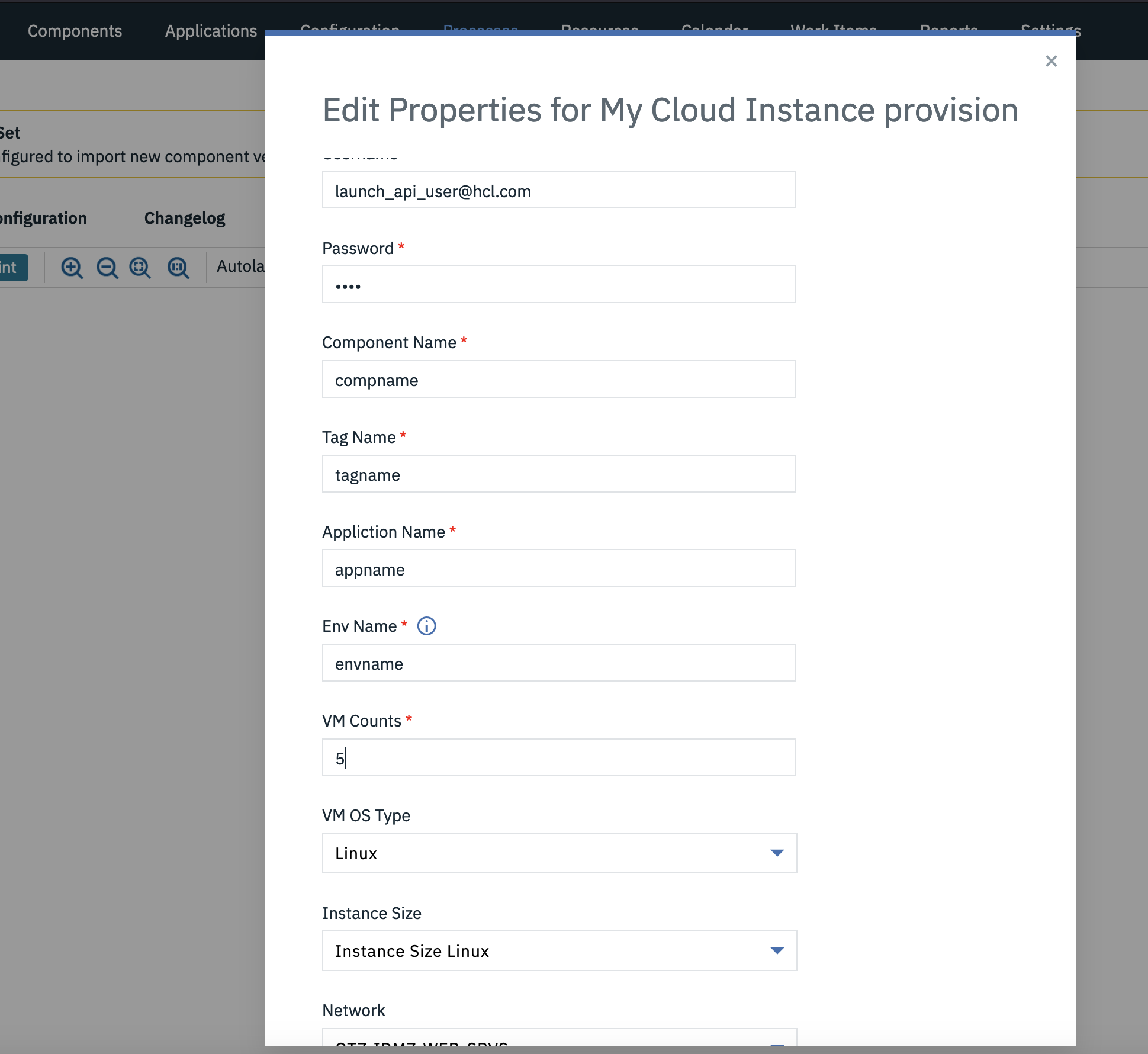
Name Type Description Required

MyCloud Api Url

String

The API url associated with the my cloud

account Ex-https://demo.domain.com.

Yes

Username

String

The username associated with the my cloud account.

Yes

Password

Secured

The password associated with the my cloud account.

Yes

Component Name

String

The launch component name associated with the deployment.

Yes

Tag Name

String

The tag name to add with the component Ex- windows_tag.

Yes

Appliction Name

String

The launch application name which will deploy the component version Ex- application-mycloud-launch.

Yes

Env Name

String

The launch environment name under the application provided. In this environment the deployment will be done Ex- DEV, PROD etc.

Yes

VM Counts

String

Number of VMs required to be created in this step.

Yes

VM OS Type

Dropdown

Select the OS type of the VM.

Yes

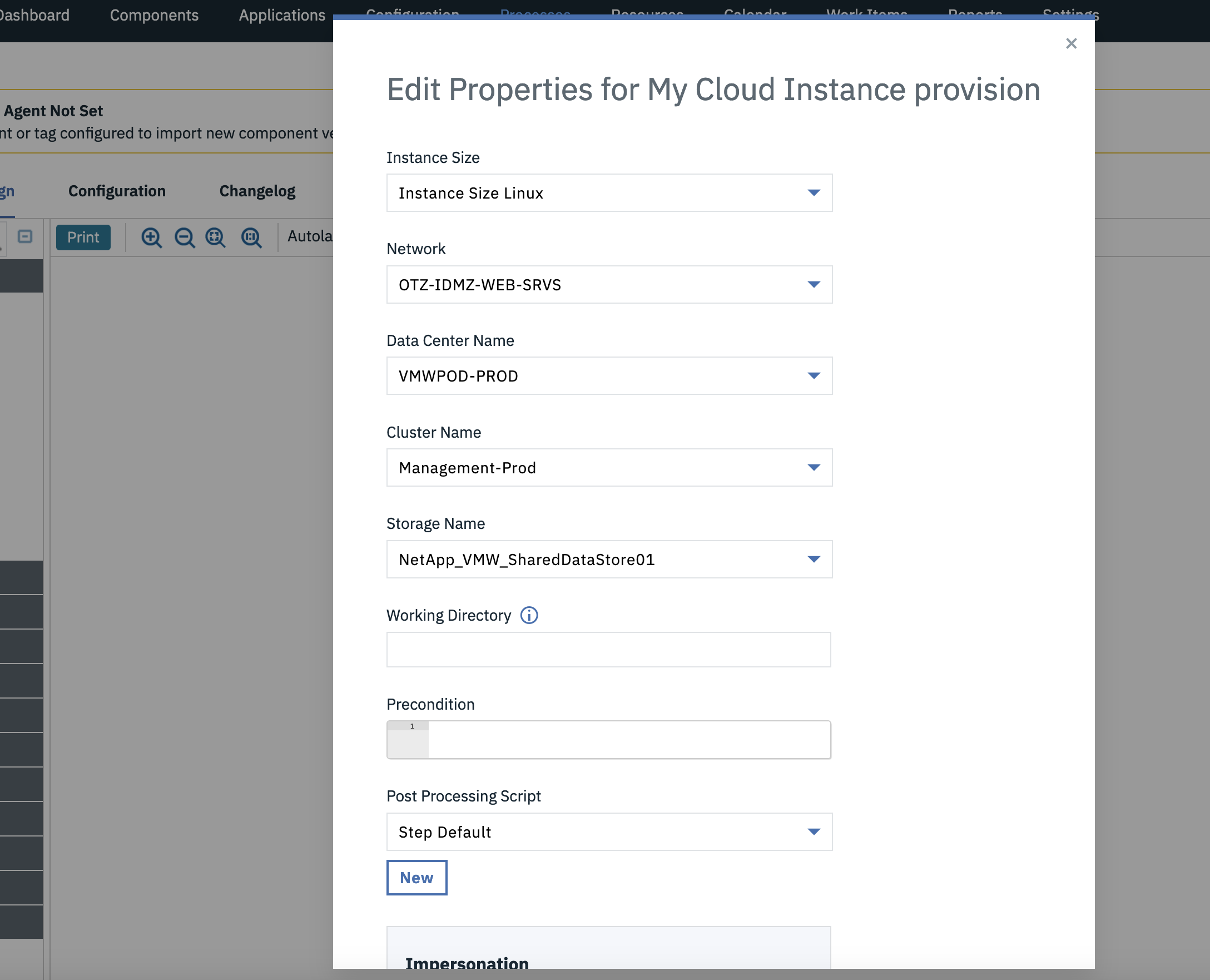
Instance Size

Dropdown

Select the Instance size according to the OS type.

Yes

Network

Dropdown

Select the Network

Yes

Data Center Name

Dropdown

Select the Data Center Name

Yes

Cluster Name

Dropdown

Select the Cluster Name

Yes

Storage Name

Dropdown

Select the Storage Name

Yes


Only for version 1

For Initial release of the plugin, the VM provision data are described below.

Requesting for Windows VM:

{
“items”: [
{
“businessparameters”: {
“ddlInstanceSize”: “Large_L1”,
“ddlNetwork”: “OTZ-IDMZ-WEB-SRVS”,
“hdnDataCenterName”: “VMWPOD-PROD”,
“hdnClusterName”: “Management-Prod”,
“hdnStorageName”: “NetApp_VMW_SharedDataStore01”,
“launchAgentURL”: “Place Your launch Agent Server IP Address”
}
}
],
“serviceCatalogId”: “103”
}


Requesting for Linux VM:

{
“items”: [
{
“businessparameters”: {
“ddlInstanceSize”: “Medium_M1”,
“ddlNetwork”: “OTZ-IDMZ-DTB-SRVS”,
“hdnDataCenterName”: “VMWPOD-PROD”,
“hdnClusterName”: “Management-Prod”,
“hdnStorageName”: “NetApp_VMW_SharedDataStore01”,
“launchAgentURL”: “Place Your launch Agent Server IP Address”
}
}
],
“serviceCatalogId”: “102”
}

Usage

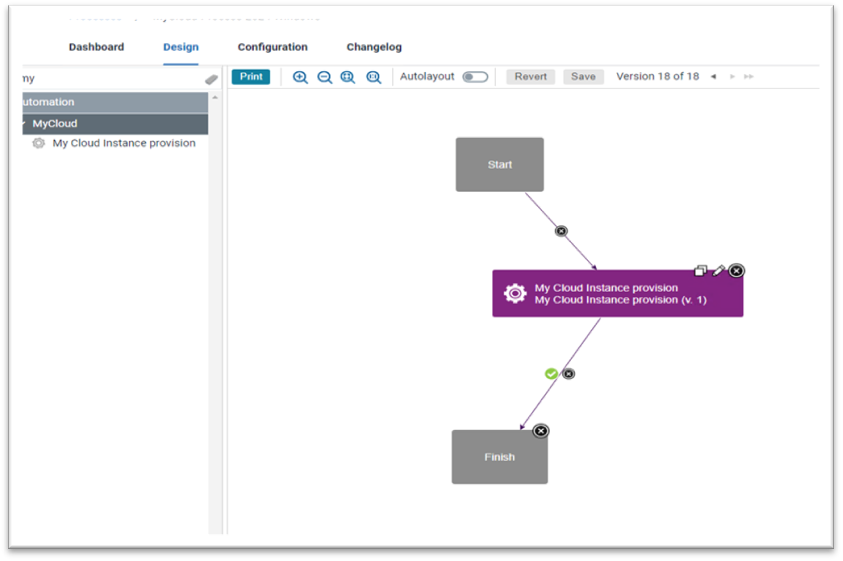
    1. Create a generic process.
    2. Search for MyCloud plugin in the search palette and add it to the step as shown below
    3. Add MyCloud to process step screen
    4. Configure the step, as shown below, with all the properties required.
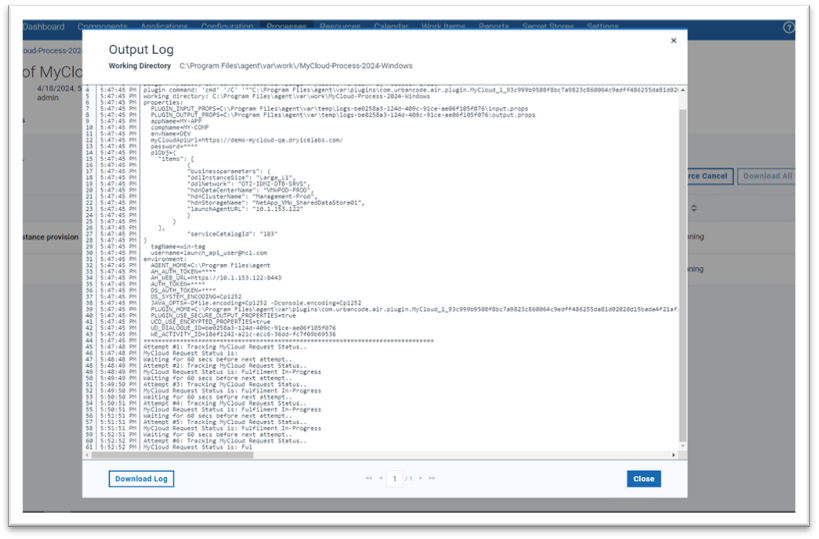
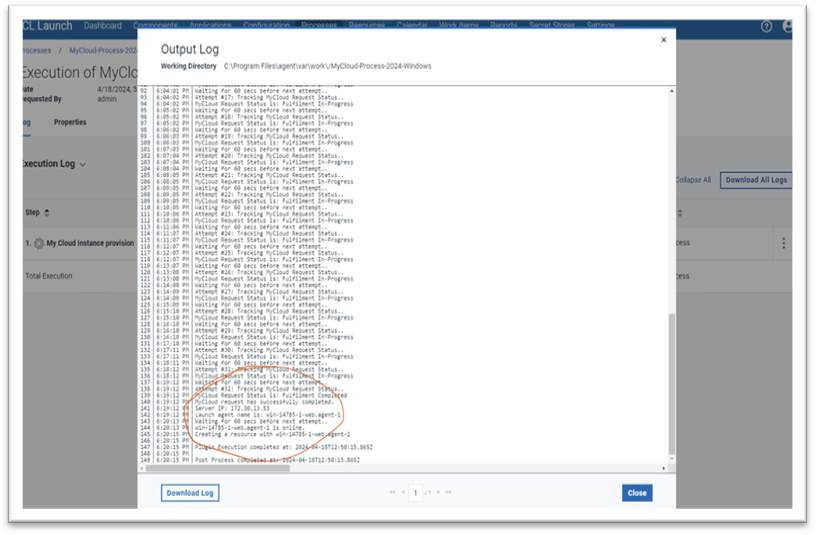
    5. Execute the process. It typically requires 25-30 minutes to finish. Refer to the images below to track the progress from initiation to completion.
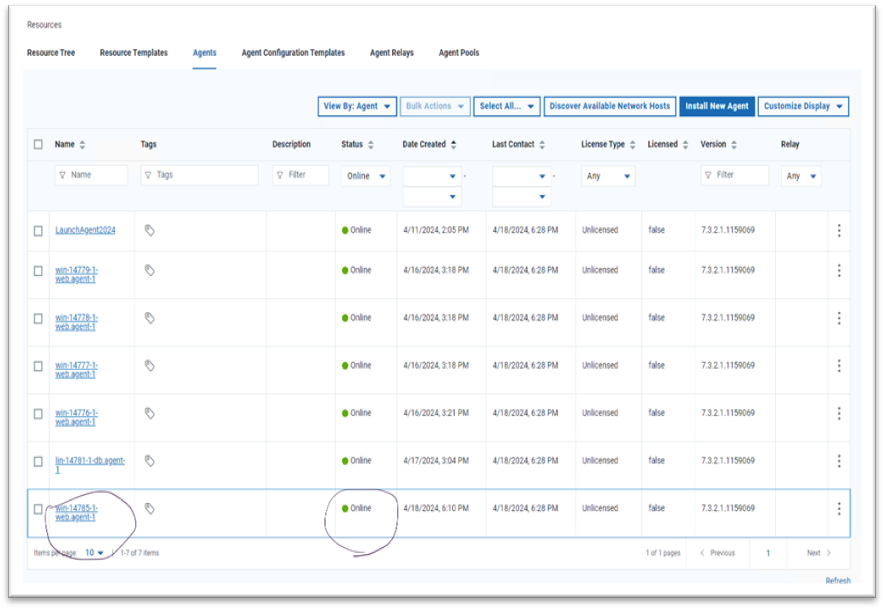
      The plugin step involves creating a VM and installing a Deploy agent in it. The agent will then appear as Online in the resource tab.
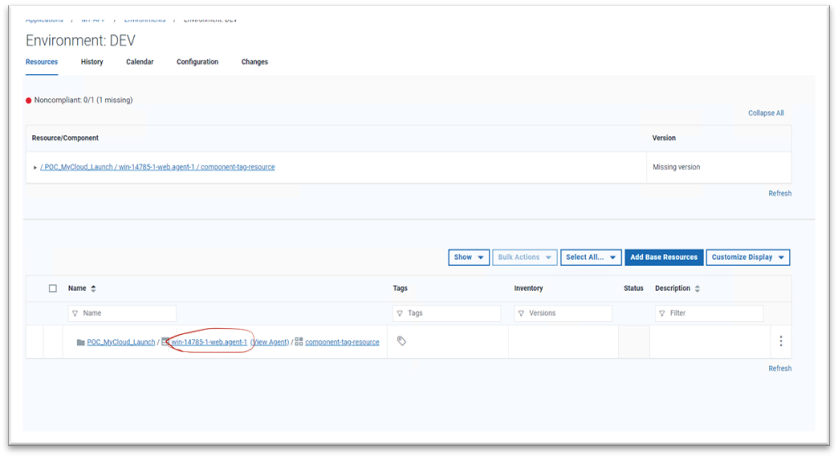
      A resource group will be created to host the agent and then the tagged accordingly.
      This resource group will be added to our Environment (DEV of application MY-APP) provided in the plugin step UI.
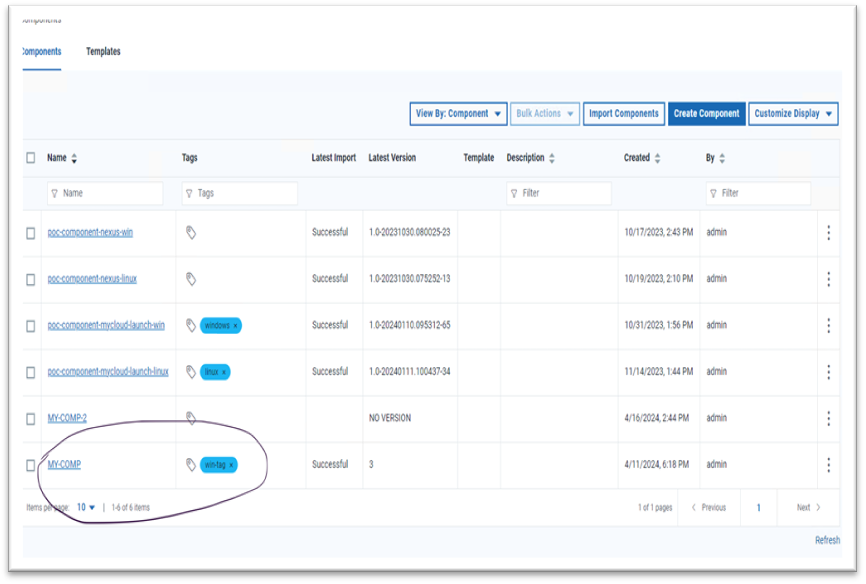
      Additionally, the tag will be applied to the component (MY-COMP).Output log
    6. Output log 2
    7. The agent is successfully created and is currently Online (win-14785-1-web.agent-1). It was deployed on the VM with the IP address 172.30.13.53.

                   Component tag

  1. The tag name provided in the plugin is automatically applied to the component.             Component tag
  2. The created Resource is added to the environment.     Resource added to Environment
  3. This environment is now ready for deploying any version of the MY-COMP component. Deployment will target the machine created earlier, specifically the VM with the IP address 172.30.13.53.


    Version

  • 2
  • 1

Deploy-MyCloud-2.1168407.zip

Uploaded: 18-Jul-2024 01:20

Release Notes

  • Supports multiple VM creation.
  • Removed feature of the plugin which is to fail after 40 mins if VMs aren't created.
  • Payload object is replaced with multiple properties.

Deploy-MyCloud-1.1167478.zip

Uploaded: 12-Jul-2024 03:02

Release Notes

  • Initial version of the plug-in

Related Plugins