What’s New: Model RealTime 12.1.4

The latest version of Model RealTime is now 12.1.4. Let's look at some of the new features in this release.
New Trace File Format and Sequence Diagram Visualization With Code RealTime
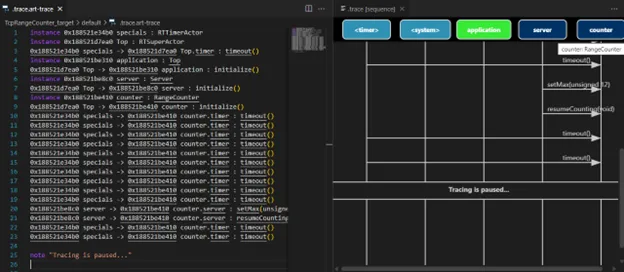
The default file format for traces captured from a running real-time application is now a new .art-trace format. It uses a small domain-specific tracing language, which has been designed to let LLMs "understand" it. The format contains more detailed runtime information than the .ms trace format and is a great help when troubleshooting problems in a running application. .art-trace files can be opened in Code RealTime to benefit from features such as syntax coloring and navigation. It's also possible to visualize such a trace file as a sequence diagram. Read more about this feature in the documentation.
Utility for Waiting in a State for Multiple Events

Sometimes a capsule state machine may need to wait in a certain state until several events have been received before transitioning to another state. The TargetRTS now provides a utility RTMultiReceive, which makes it easier to implement this pattern. Read more about this feature in the documentation.
Pinning the Code View
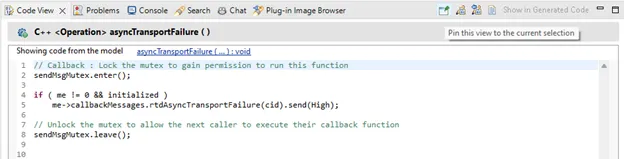
A new button in the Code View toolbar lets you pin the Code View to always show code for a specific element, even if the selected element is changed. This can, for example, be useful if you want to navigate to a function that is called from the code snippet shown in the Code View, but still keep that code snippet open.
Restore a Modified Property to Its Default Value
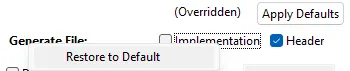
When you have modified a property in the C++ General and C++ Target RTS property pages, it's shown with bold font and the property page is prefixed with the > character to make it easy to see what has been modified. You can now restore such a modified property to its default value by means of a new context menu command Restore to Default. If you want to restore all modified properties for the property page, use the button Apply Defaults.
Learn more about the new features by watching the videos in our Sprint Demo YouTube Playlist.

Start a Conversation with Us
We’re here to help you find the right solutions and support you in achieving your business goals.