



The End of the Certificate Nightmare: Orchestrating Trust in WA 10.2.6

For years, system administrators in the workload automation space have shared a recurring nightmare: Certificate Rotation Season. As enterprises increasingly rely on workload automation platforms to orchestrate business-critical processes, maintaining secure communication between agents and controllers has become essential.
Before the 10.2 era, managing secure communication across a sprawling environment of agents was an intricate, manual, and often fragile process. It required a deep understanding of SSL/TLS, command-line expertise, and a fair amount of luck to ensure that one small misstep didn't leave a fleet of agents isolated and "unreachable." It was a maintenance nightmare that demanded hours of precision work.
The Journey to Simplicity: From Certman to 10.2.6
The transformation began with the introduction of Certman—an important step forward for workload automation security and certificate lifecycle management. It was our first major step toward democratizing security. By providing a dedicated tool for certificate management, we moved away from raw complexity and toward a guided experience, enabling even non-security specialists to maintain a hardened environment.
But we didn't stop there. With the release of version 10.2.6, we have reached a milestone that changes the game entirely: Remote, Centralized Agent Certificate Updates directly from the Orchestration Monitor.
The Power of a Single Click: How it Works
In modern workload automation environments, managing agent certificates centrally is critical to maintaining secure orchestration across distributed infrastructure. Imagine managing your entire security landscape without ever leaving your primary dashboard. In 10.2.6, this is the new reality.
When you navigate to the Orchestration Monitor and select a Dynamic Agent workstation (version 10.2.6+), a new power is at your fingertips under the Actions menu: Update agent certificate.
The process is as elegant as it is powerful:
- Direct Depot Sync: Once triggered, the Dynamic Agent contacts the Primary Domain Manager to fetch a fresh set of certificates directly from the Master Domain Manager’s <data_dir>/ssl/depot folder.
- Seamless Trust: These new certificates automatically replace the old ones in the agent’s local truststore, maintaining a continuous chain of trust without manual file transfers.
- Extending Trust to the Cloud: If your environment relies on external services, you can simply populate a sub-folder on the MDM (<data_dir>/ssl/depot/additionalCAs) with public certificates. The agent will pull these auxiliary CAs during the update, establishing immediate trust for external integrations.
Safety First: The "Self-Healing" Guardrail
In a world of "zero-trust" and high availability, we know that a failed security update can be catastrophic. To prevent agent isolation, we have implemented an Automatic Recovery and Rollback mechanism.
If the agent downloads a certificate that is expired, incorrectly formatted, or fails to establish a connection to the Primary Domain Manager within 5 minutes, it doesn't just fail—it heals. The agent automatically reverts to its previous functional certificates, ensuring your scheduling remains intact while you investigate the issue.
Step-by-Step: Mastering the Update Process
Ready to leave the manual rotation era behind? Orchestrating your certificate updates in WA 10.2.6 is a streamlined process. Here is how you can perform a remote refresh across your environment:
1. Access the orchestration monitor: Log in to your Dynamic Workload Console (DWC) and navigate to the Orchestration Monitor dashboard.
2. Filter by workstation: From the object selection menu, choose Workstation as the primary object to monitor.
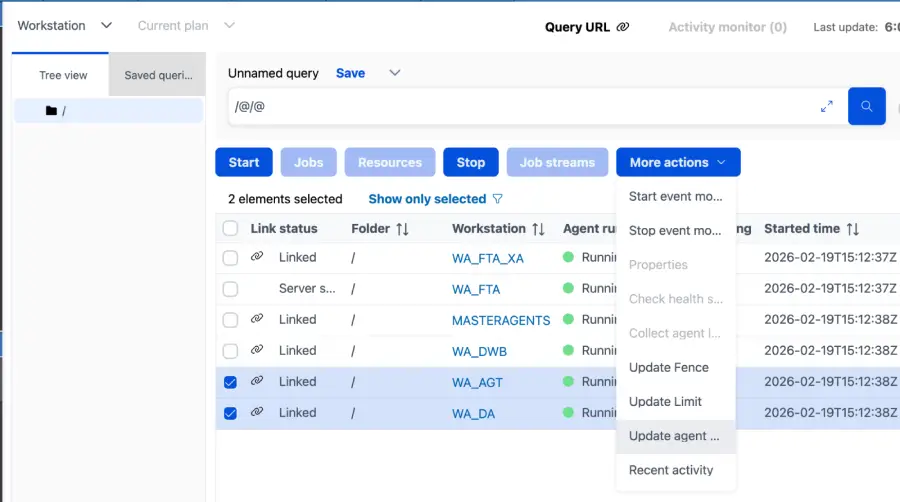
3. Target your agents: Identify and select the specific Dynamic Agents (running version 10.2.6 or later) that require a certificate refresh.
4. Trigger the update: Click on the More Actions menu and select the newly available action: Update Agent Certificates.
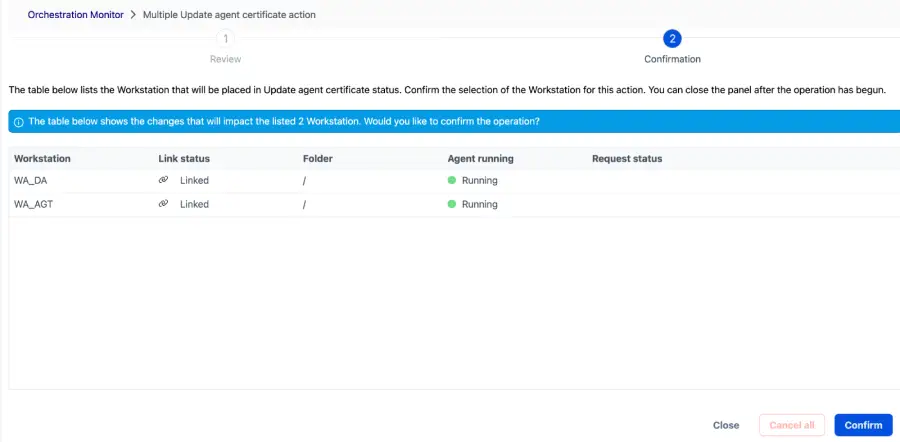
5. Follow the wizard: Complete the on-screen prompts. The system will then manage the secure handshake between the Agent and the MDM depot until the certificates are successfully updated.
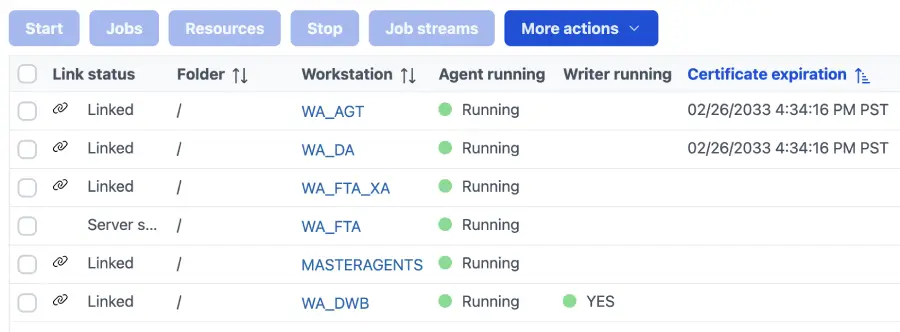
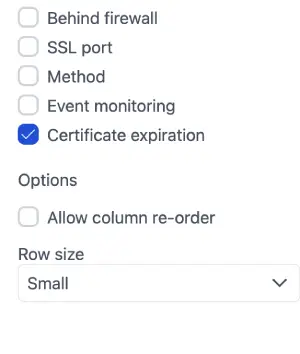
6. Enable the certificate expiration table: Within the Orchestration Monitor, you can customize your view to prioritize security data. Navigate to the Table Configuration settings and enable the Certificate Expiration column.
7. Instant validation: This allows you to immediately visualize the new expiration dates for the certificates just downloaded to your selected agents. This real-time update provides instant peace of mind and proof of compliance without leaving the console.
Monitoring & Troubleshooting
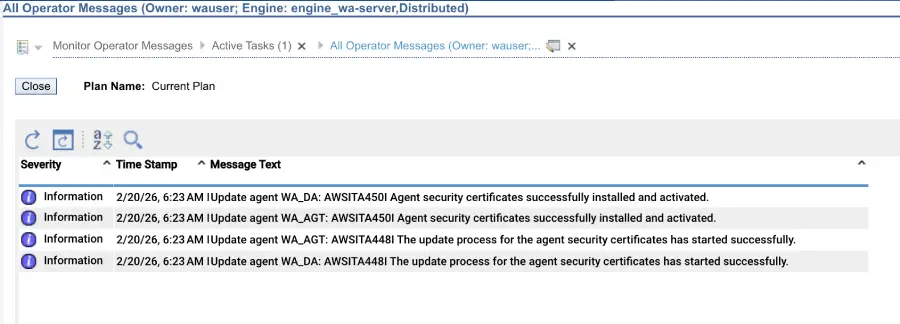
The transparency of this process is absolute. You don't need to dive into the file system of remote servers to verify success. All operation logs and progress updates can be monitored in real time directly through the Operator Messages in the DWC.
This centralized logging ensures that, if the automatic rollback mechanism is triggered, you will immediately see the reason (e.g., a connection timeout or an invalid format) and can act accordingly.
Total Visibility
Security is nothing without verification. To close the loop, administrators can now add the Certificate Expiration column to their Orchestration Monitor table. This provides a real-time, high-level view of your compliance status, allowing you to identify at a glance which agents are due for a "one-click" refresh.
Conclusion: A New Standard of Compliance
The 10.2.6 update represents more than just a new feature; it is a celebration of how far we’ve come. We have turned an "expert-only" nightmare into a streamlined, safe, and centralized operation. By merging automation with security orchestration, we ensure your environment remains compliant with modern standards while significantly reducing your team's operational burden.
The nightmare is over. Centralized trust is here.

Start a Conversation with Us
We’re here to help you find the right solutions and support you in achieving your business goals.
